
Profile Settings
Override Display Profile Settings for individual Displays:
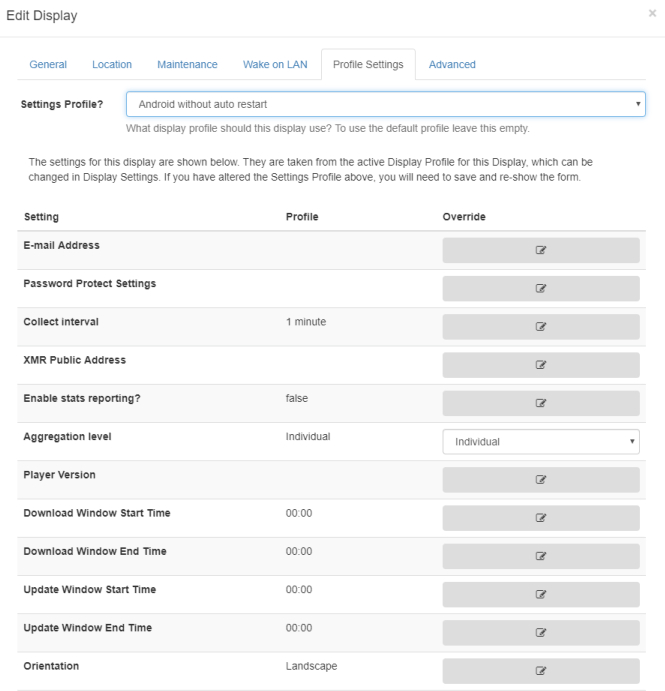
Click the edit icon to change selected settings to override the Profile.
Remote
Enter details for remote access
Advanced
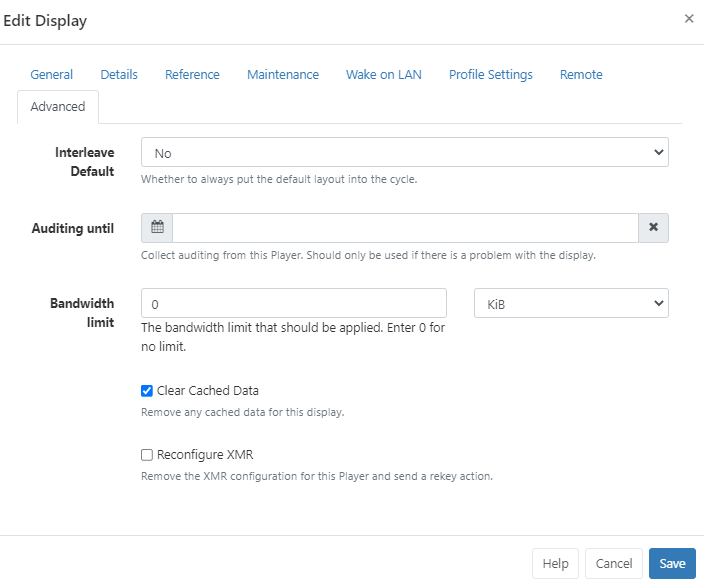
-
Apply a limit to determine the amount of Bandwidth a Display can consume.
Set bandwidth limits for multiple Displays using the With Selected option at the bottom of the grid!
Delete
Deleting a Display will remove it from the CMS entirely - this operation cannot be reversed. A deleted Display can be reconnected to the CMS by repeating the “Register” procedure which will create a new unique Display record.
Deauthorise a Display instead of deleting so that it can be re-authorised at a later date if needed. Use the row menu for the Display and click on Authorise to toggle to Deauthorise. This can also be actioned from the Edit Display form by selecting No for Authorise display.
Send Command
The Send Command functionality is executed via XMR to Players by selecting a predefined command. This is useful for sending Players ‘Reboot’ commands for example.
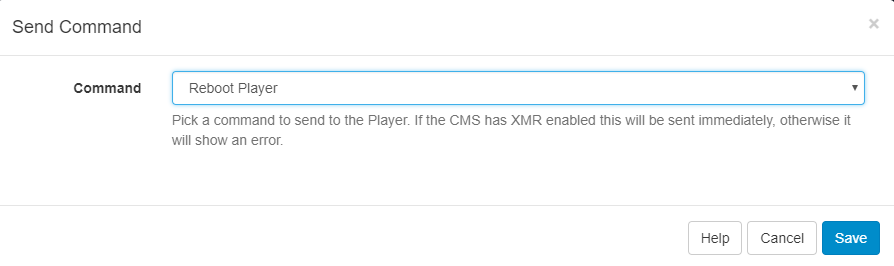
This type of Command can also be executed by scheduling a Command Event
Transfer Display to another CMS
To use this functionality you will first need to activate Google Authenticator using Two factor Authentication, if you have not already set this up.

Once activated, click on Displays from the CMS main menu and use the Row Menu to click on Transfer to another CMS for the selected Display you want to transfer.
Ensure all the form fields are completed by:
-
Entering the full CMS URL you wish to transfer this Display to.
-
Providing the CMS Secret Key for the CMS Address you wish to transfer to.
-
Complete the Two Factor authentication code, as displayed on the app.
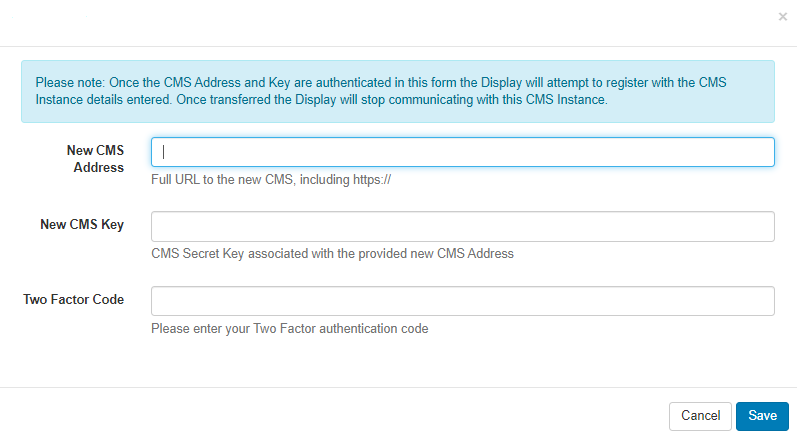
Once the details provided have been authenticated, the Display will attempt registration with the ‘new’ CMS. Once the Display has been successfully transferred the Display will stop communicating with the ‘old’ CMS and will change from a ‘tick’ to a X in the Authorised column.
Select multiple Displays to transfer using the With Selected option at the bottom of the grid!
Certain Actions from the row menu have the option to be ‘automatically submitted’, see Grids for further information!